

INSIDE FAR AIM · NOTE TAKING
Keep the question with the passage.
Leave yourself a reminder or a question for your instructor. When you come back to it, the passage is right there with your note.
FAR AIM 2.0 · Reviewed November 19, 2026
In the app On a FAR or AIM page, touch and hold a passage, adjust the selection handles, then tap Add Note. Write your note and tap Save.
Start with the words that prompted it
Add Note appears in the text selection menu and above the highlight colors. The note editor shows your selected words under Attached Passage.
A dotted underline marks a passage with a note. Tap it to see the note, or tap Passage Notes in the reader toolbar to see all notes for that article.
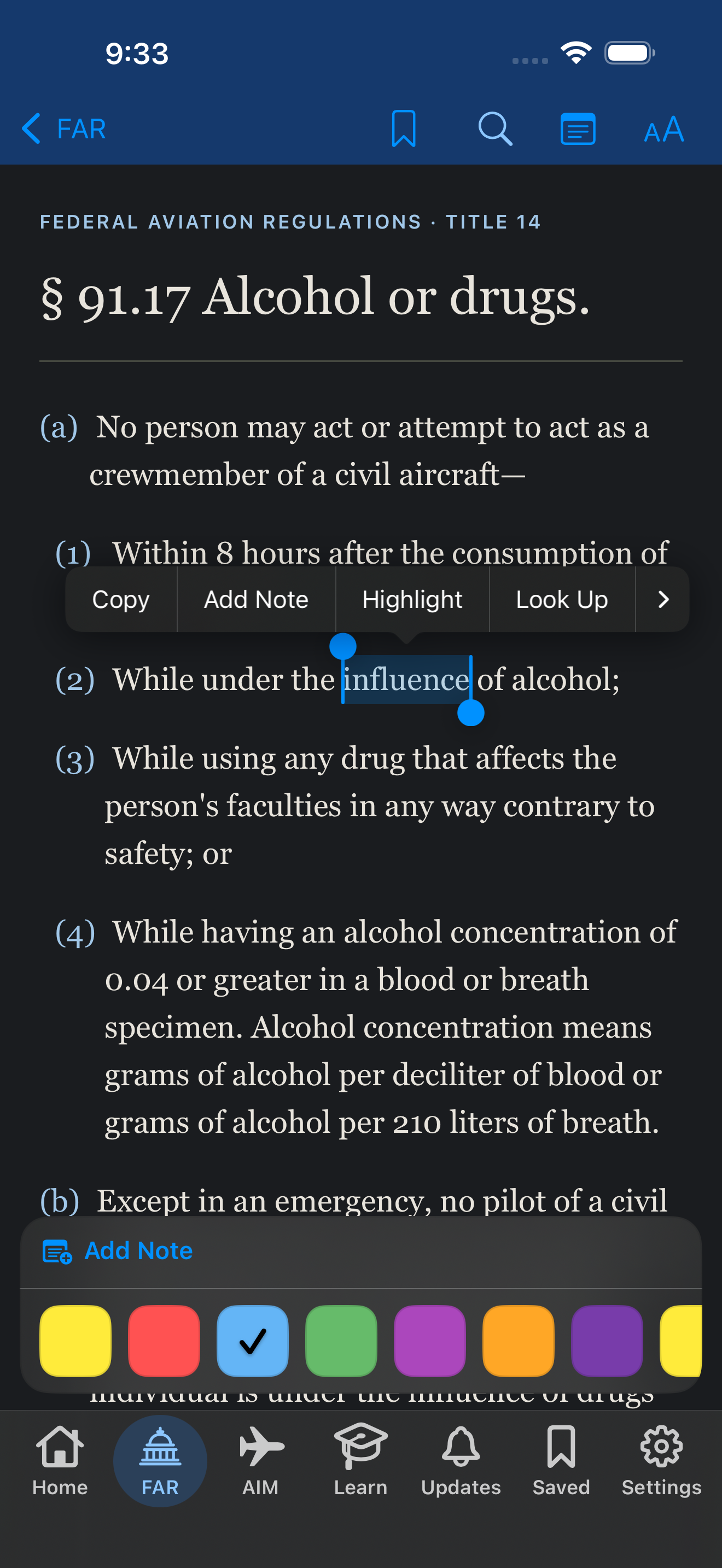
- Tap Add Note in the selection menu.
Pick up where you left off
Open Saved and choose Notes. Search by a word you wrote, words from the saved passage, or the source title or citation.
Tap a note to read or edit it. Tap Save after changing your note, or tap Open Passage to read the source again in context.
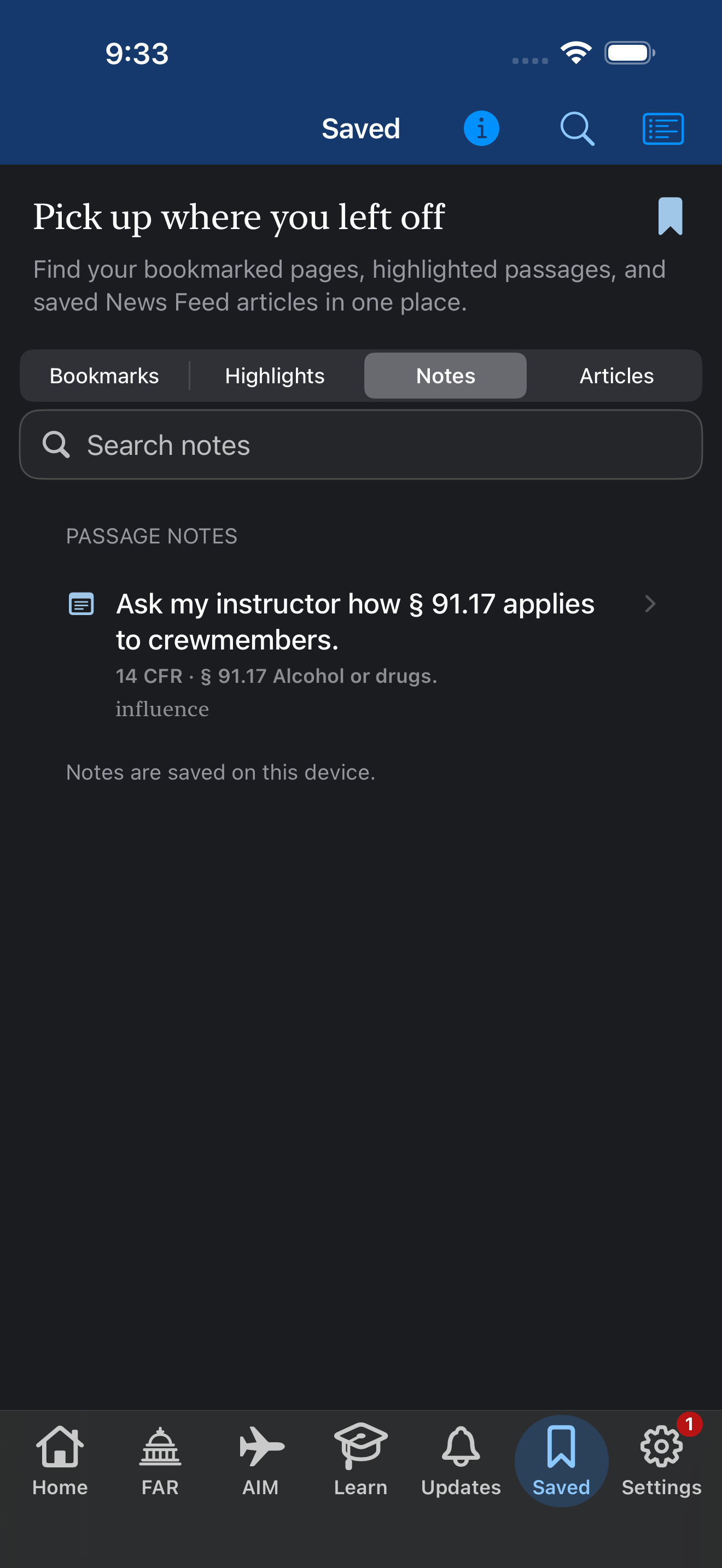
- Choose Notes, then use Search notes to narrow the list.
- Tap the note to edit it or open the passage.
Find your note alongside the references
In Super Search, enter a few words you remember. Matching passage notes appear under Your Notes. Tap a match, then choose Open Passage to return to the original text.
Your Notes also works offline. If an update moves the passage and FAR AIM can’t find it in the new edition, the original excerpt is still in the note.
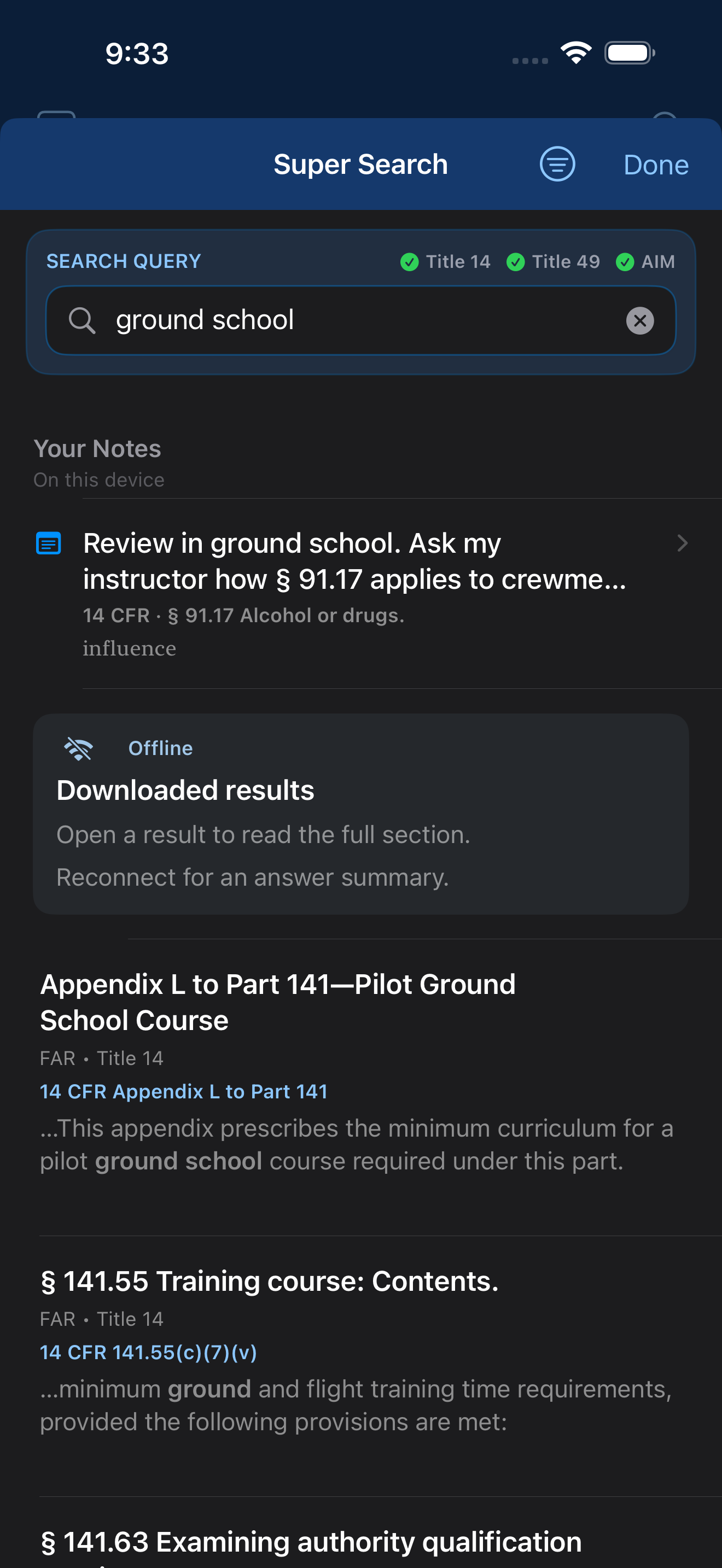
- Enter a word or phrase from your note.
- Tap a match under Your Notes to reopen it.
Put the discussion next to the reading
Creating a reading assignment? In the Reading Lists editor, add the reading and tap Choose notes. Include only the notes you want students to see, then save and publish the list.
Anyone with the published link can see the copies you include. Your other notes stay on your device. Students see each instructor note below its reading and can open the passage from there.
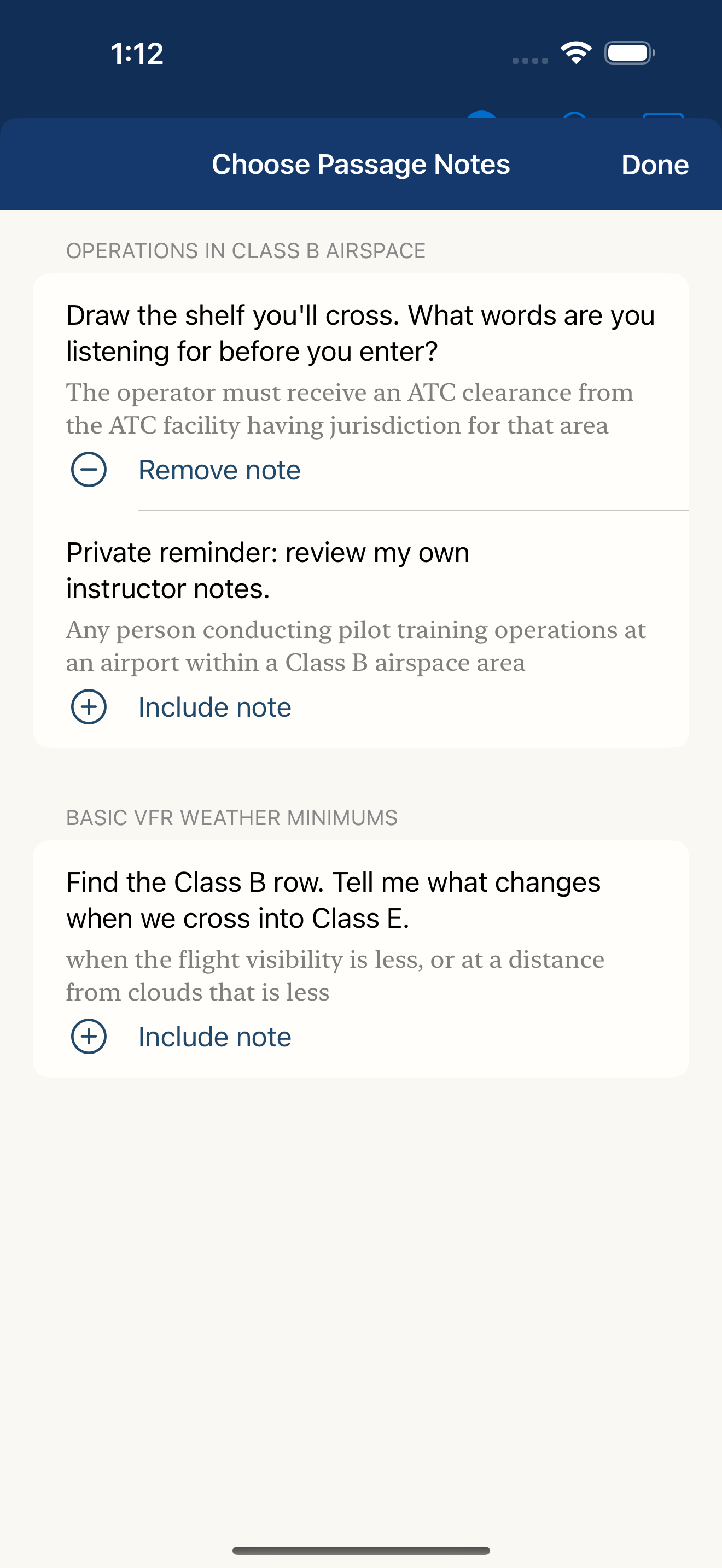
- After you tap Include note, the button changes to Remove note.
Your personal notes are stored on this device. A published reading list includes copies of the notes you chose to share.
Your next lesson starts with a question.
Keep a good reference close.
FAR AIM for iPhone and iPad. iOS or iPadOS 18 or later.
One purchase. No subscription.
See your local price on the App Store.